Best Apps for Digital Coloring: iPad, Android and Phone Guide
By Shni Luna · · 8 min read · Digital Coloring
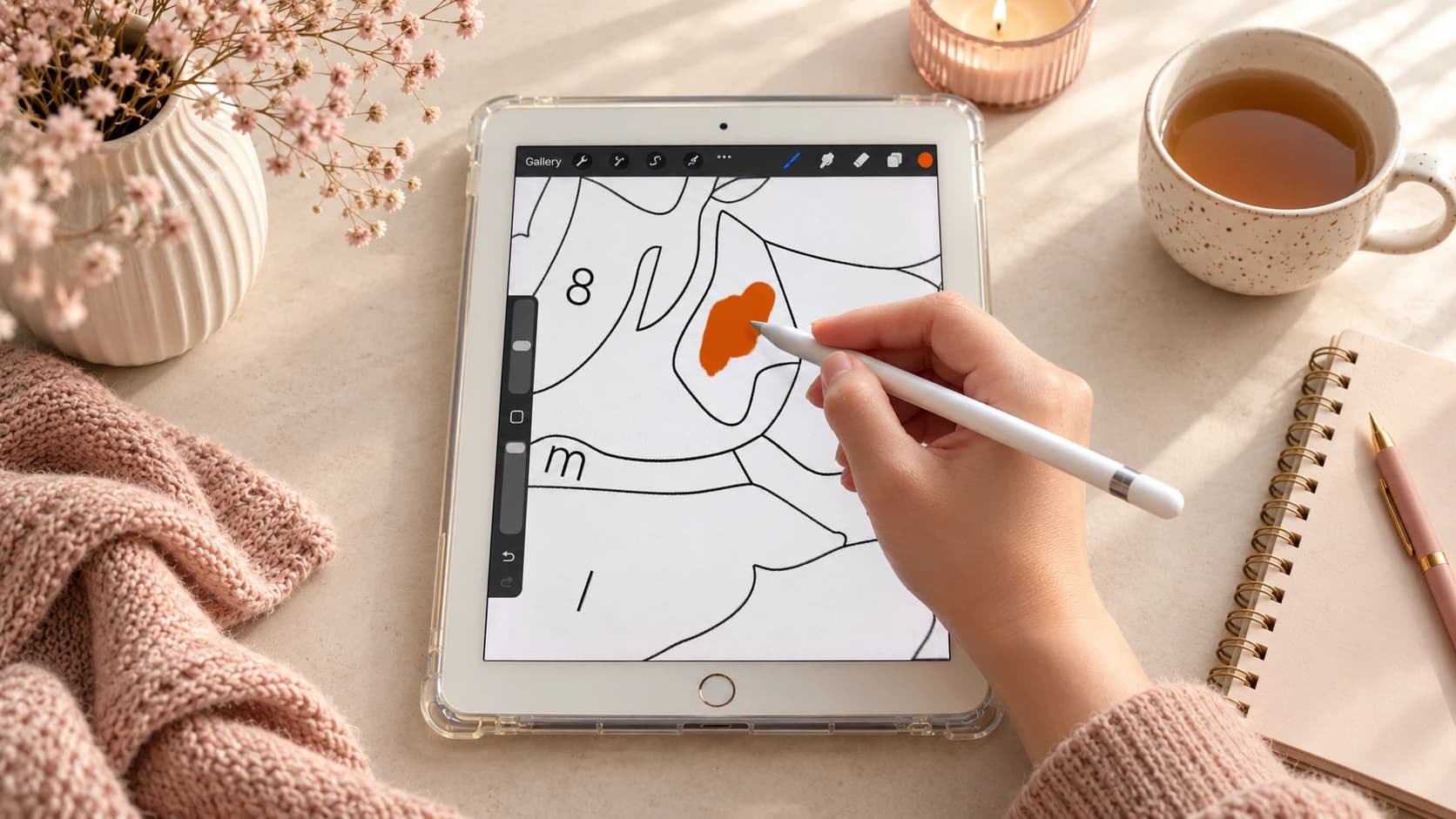
Choosing the right app can make digital coloring feel much easier.
If you want to color on an iPad, Android tablet, or phone, you need an app that can open an image file and let you color over it. Some apps feel simple and beginner-friendly, while others offer more advanced tools for layers, brushes, and filling areas.
This guide will help you choose the best app for your device and coloring style.
What makes a good digital coloring app?
A good digital coloring app does not need to be complicated.
For coloring pages, the most useful features are:
- image import
- layers
- zoom
- solid brushes
- color picker or eyedropper tool
- fill tool
- undo and redo
- export or save options
If you are using paint-by-number pages, the app should make it easy to pick colors from the palette and fill small numbered areas.
For beginners, the best app is usually the one that feels the least confusing.
New to digital coloring? Read the Digital Coloring Guide
Quick comparison
| App | Best for | iPad | Android | Beginner-friendly |
|---|---|---|---|---|
| Adobe Fresco | Free iPad start | Yes | No | Yes |
| Procreate | Smooth iPad workflow | Yes | No | Yes, after a little practice |
| ibisPaint X | Android and phone coloring | Yes | Yes | Medium |
| Sketchbook | Simple drawing workflow | Yes | Yes | Yes |
Prices, features, and availability can change, so always check your App Store or Google Play before downloading.
1. Adobe Fresco
Best free option for iPad beginners
Adobe Fresco is a good first app to try if you have an iPad and want to start digital coloring without buying Procreate right away.
It has drawing tools, brushes, layers, and Apple Pencil support. For a beginner, it can be a nice way to test whether you enjoy digital coloring before committing to a paid app.
Why it works for coloring
Adobe Fresco can work well for simple digital coloring because you can import a coloring page and color over it with brushes and layers.
It is a good option if you want:
- a free iPad app to start with
- Apple Pencil support
- layers
- a simple way to test digital coloring
Things to keep in mind
For my personal workflow, Adobe Fresco can feel a little less smooth than Procreate, but it is still a good beginner option.
If you are new and just want to try coloring on iPad, Adobe Fresco is a comfortable place to start.
2. Procreate
Best paid option for iPad
Procreate is one of the most popular creative apps for iPad.
It feels smooth, responsive, and comfortable with Apple Pencil. If you enjoy digital coloring and want a polished workflow, Procreate is a strong choice.
Why it works for coloring
Procreate is great for coloring pages because it has useful tools like:
- layers
- solid brushes
- ColorDrop
- color picker
- zoom
- undo and redo
- high-resolution canvas support
- export options
For paint-by-number pages, you can pick colors from the palette and color areas by hand with a brush. You can also use ColorDrop in some larger closed areas.
Things to keep in mind
Procreate is iPad-only and is usually a paid app. If you are not sure whether you will enjoy digital coloring yet, you may want to try a free app first.
If you already know you like coloring on iPad, Procreate is my favorite option.
3. ibisPaint X
Best option for Android and phone coloring
ibisPaint X is a strong option if you use an Android tablet, Android phone, or want an app that also works on iPad.
It has many tools, and it is especially useful if you want to color on a phone or Android device.
Why it works for coloring
ibisPaint X can be useful for digital coloring because it supports image import, layers, brushes, color picking, and fill tools.
It is a good option if you want:
- an Android-friendly coloring app
- a phone coloring option
- many drawing tools
- fill tools
- layers
- a flexible option to try
Things to keep in mind
ibisPaint X has many features, so the interface can feel a little busy at first.
If you are coloring on a phone with your finger, it may take a little time to get used to zooming, choosing colors, and filling small areas. But once you understand the workflow, it can work well.
For Android users, this is usually the first app I recommend trying.
4. Sketchbook
Simple option for iPad and Android
Sketchbook is a clean drawing app available for tablets and phones.
It can be a good option if you want something simple and less overwhelming than feature-heavy apps.
Why it works for coloring
Sketchbook is useful for basic coloring because it supports drawing tools, layers, and a clean workspace.
It is a good option if you want:
- a simple interface
- iPad and Android support
- basic digital coloring tools
- a less cluttered app experience
Things to keep in mind
Sketchbook may feel simpler than Procreate or ibisPaint X. That can be a benefit if you are a beginner, but it may also feel less convenient for some paint-by-number workflows.
If you want a calm, simple app to test digital coloring, Sketchbook is worth trying.
Which app should you choose?
Here is my simple recommendation.
If you have an iPad and want to start for free
Start with Adobe Fresco.
It lets you test digital coloring on iPad before buying another app.
If you have an iPad and want the smoothest workflow
Choose Procreate.
It is my favorite option for iPad coloring because it feels smooth, comfortable, and intuitive.
If you have Android
Try ibisPaint X first.
It works well for Android tablets and phones and has the tools you need for digital coloring.
If you want something simple
Try Sketchbook.
It is a good option if you want a cleaner and simpler drawing app experience.
If you want to color on your phone
Try ibisPaint X.
A phone screen is smaller, but ibisPaint X can work well if you zoom in and color slowly.
What file type do you need?
For digital coloring, high-resolution PNG files are a good choice.
PNG files are easy to import into many drawing apps, and high-resolution pages help the lines and numbers stay clear when you zoom in.
Shni Luna coloring pages are provided as high-resolution PNG files and can be used in apps that support image import.
Do Shni Luna pages work in these apps?
Yes. Shni Luna pages are not app-specific files.
They are high-resolution PNG coloring pages that work in drawing apps that support image import.
You can use them in:
- Procreate
- Adobe Fresco
- ibisPaint X
- Sketchbook
- other apps that allow image import and drawing
Each page also includes several file versions, so you can choose the one that works best for your app and coloring style.
Which file should you open first?
For digital coloring, I recommend starting with the:
Numbers + Color Palette Page
This file includes the numbered artwork and the color palette together.
It is especially helpful for beginners because you do not need to open the palette separately. You can see the number on the artwork and the matching color in one place.
If you want more freedom, you can use the Contour Page and choose your own colors.
Digital coloring tips for any app
No matter which app you choose, these tips can help:
- start with a simple page
- use a solid brush
- keep opacity at 100%
- zoom in for small details
- save your progress
- use layers if the app supports them
- try the eyedropper tool to pick colors from the palette
- do not worry if the first page is not perfect
The app is only a tool. The most important part is finding a workflow that feels comfortable and relaxing for you.
Try a free coloring page first
If you are not sure which app to use, try a free coloring page first.
Download a simple page, open it in one of the apps, and color a few areas. You do not need to finish the whole design.
This is the easiest way to see which app feels best for you.
Frequently asked questions
What is the best app for digital coloring?
For iPad, my favorite paid option is Procreate. For a free iPad start, try Adobe Fresco. For Android or phone coloring, try ibisPaint X. For a simple app experience, try Sketchbook.
Can I use digital coloring pages without Procreate?
Yes. Procreate is not required. You can use Adobe Fresco, ibisPaint X, Sketchbook, or another app that supports image import and drawing.
What is the best coloring app for Android?
ibisPaint X is a good option for Android tablets and phones. Sketchbook can also work if you prefer a simpler interface.
What is the best free app for iPad coloring?
Adobe Fresco is a good free option to try on iPad. Sketchbook can also be a simple option depending on your device and app store availability.
Can I color on my phone?
Yes. You can color on a phone using an app such as ibisPaint X. A phone screen is smaller, so you may need to zoom in more often.
Do I need a stylus?
A stylus is helpful, especially for small details, but you can try coloring with your finger if you are using a phone or just testing the process.
Can I print the same coloring pages?
Yes. Shni Luna pages can be used digitally or printed. For printing, use the Numbered Page or Contour Page depending on your preferred style.
Start digital coloring
The best app for digital coloring is the one that feels comfortable for you.
If you have an iPad, try Adobe Fresco or Procreate. If you have Android or want to color on your phone, try ibisPaint X. If you want something simple, try Sketchbook.
Start with one free page, one app, and one color. You can always change your workflow later.