Digital Coloring Guide
By Shni Luna · · 7 min read · How to Color
Digital coloring is a convenient way to color paint-by-number pages on an iPad, Android tablet, or even a phone.
You don’t need to print anything, buy lots of art supplies, or have drawing skills. Just download your coloring page, open it in a drawing app, and start filling the small areas with color.
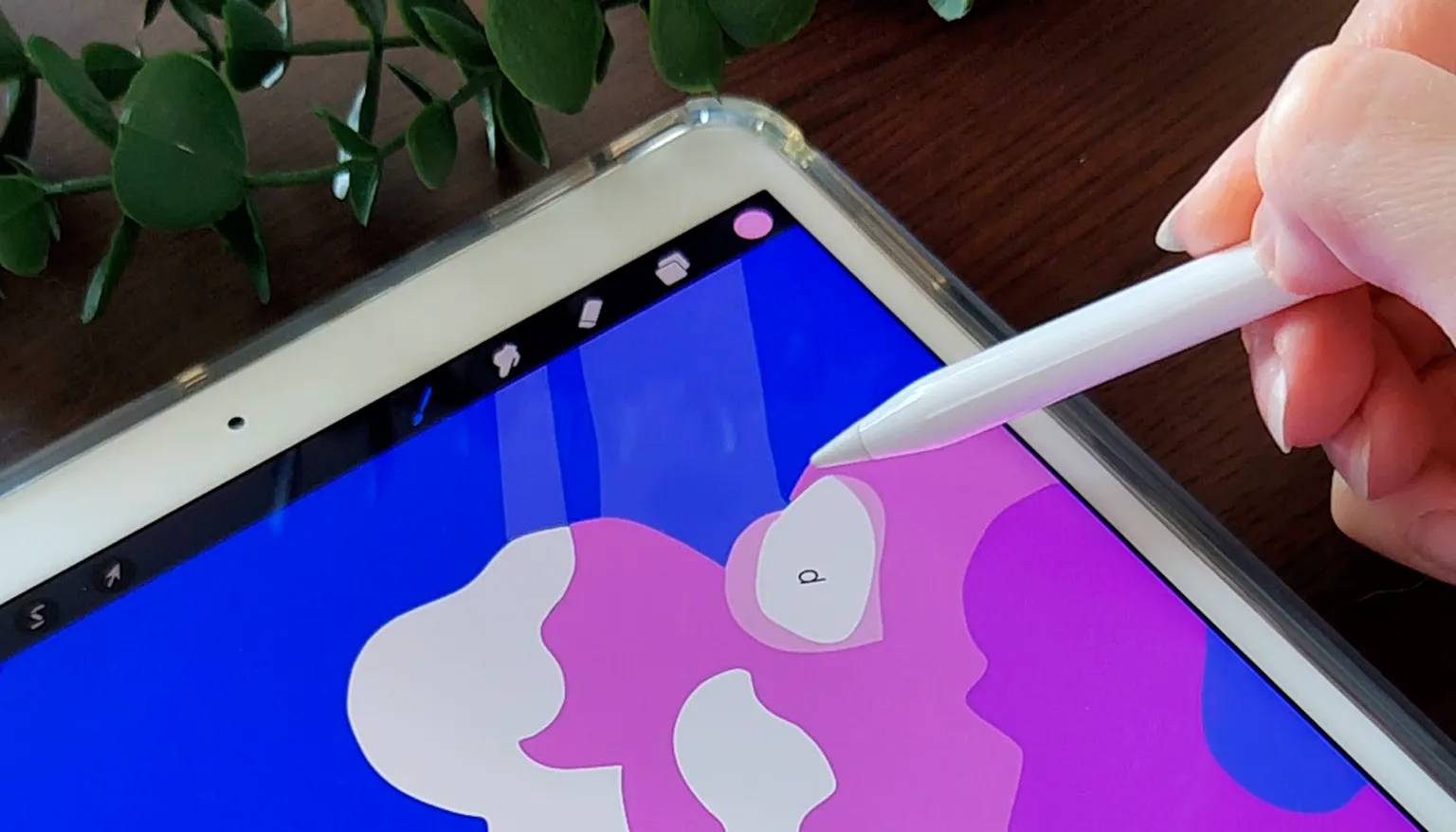
What you need for digital coloring
To get started, you need:
- an iPad, Android tablet, or phone
- a stylus, or your finger if you are coloring on a phone
- a drawing app
- a digital coloring page
1. Choose an app
For digital coloring, you need an app that allows you to import an image and draw over it.
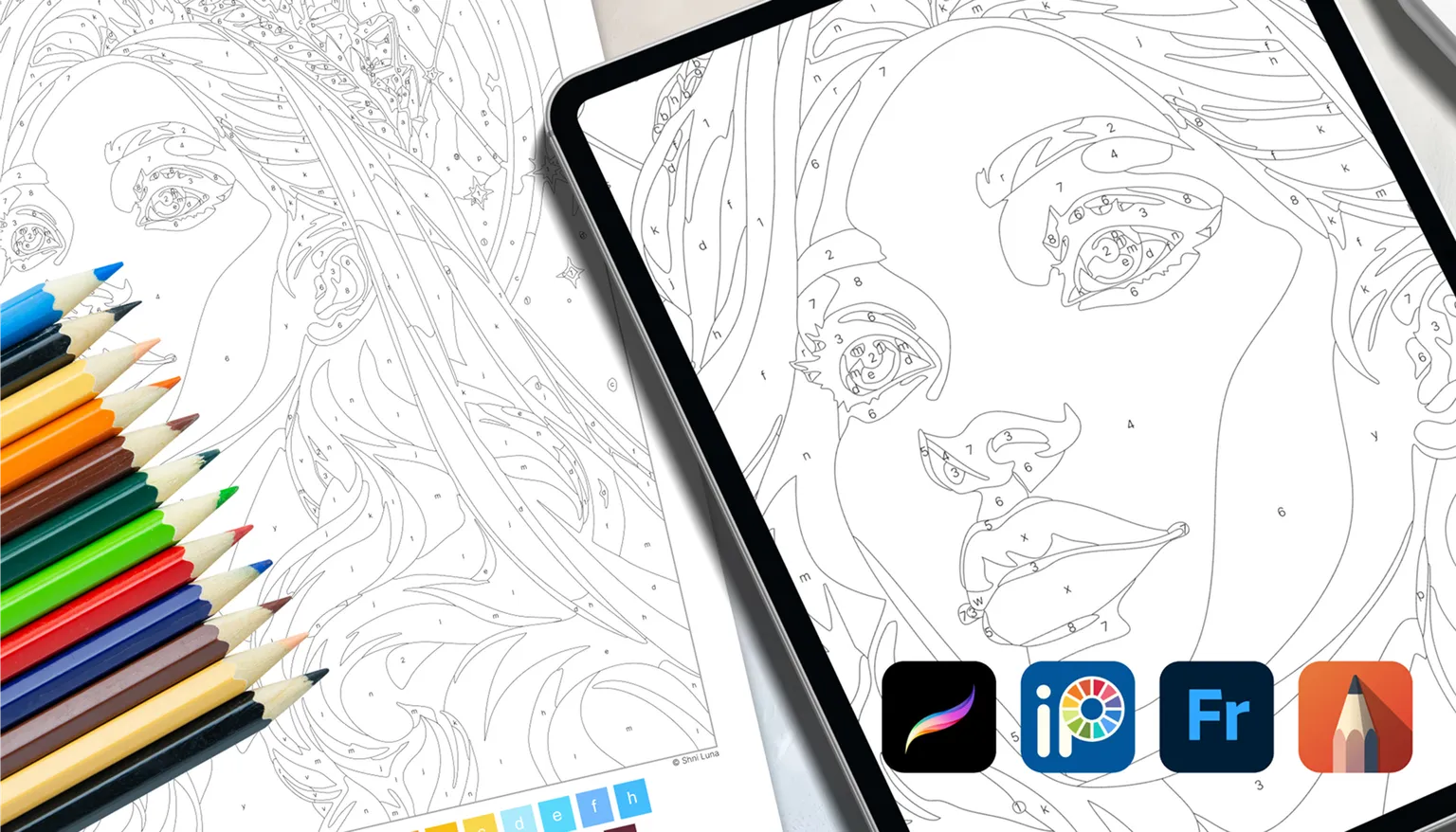
Popular options:
| App | iPad | Android | Notes |
|---|---|---|---|
| Procreate | Yes | No | My favorite option for iPad |
| ibisPaint X | Yes | Yes | A good option for Android and phones |
| Sketchbook | Yes | Yes | A simple free option |
| Adobe Fresco | Yes | No | A free option for iPad |
Prices and availability may vary depending on your country and the App Store or Google Play.
My quick recommendation:
- if you have an iPad, start with Adobe Fresco. It’s free, and if you enjoy digital coloring, you can later move to Procreate
- if you have an Android device, try ibisPaint X or Sketchbook. Both apps have free options
- if you want to color on your phone with your finger, I recommend trying ibisPaint X
2. Download your coloring page
After purchasing or downloading a free page, you will receive the coloring files.
For digital coloring, I recommend starting with the:
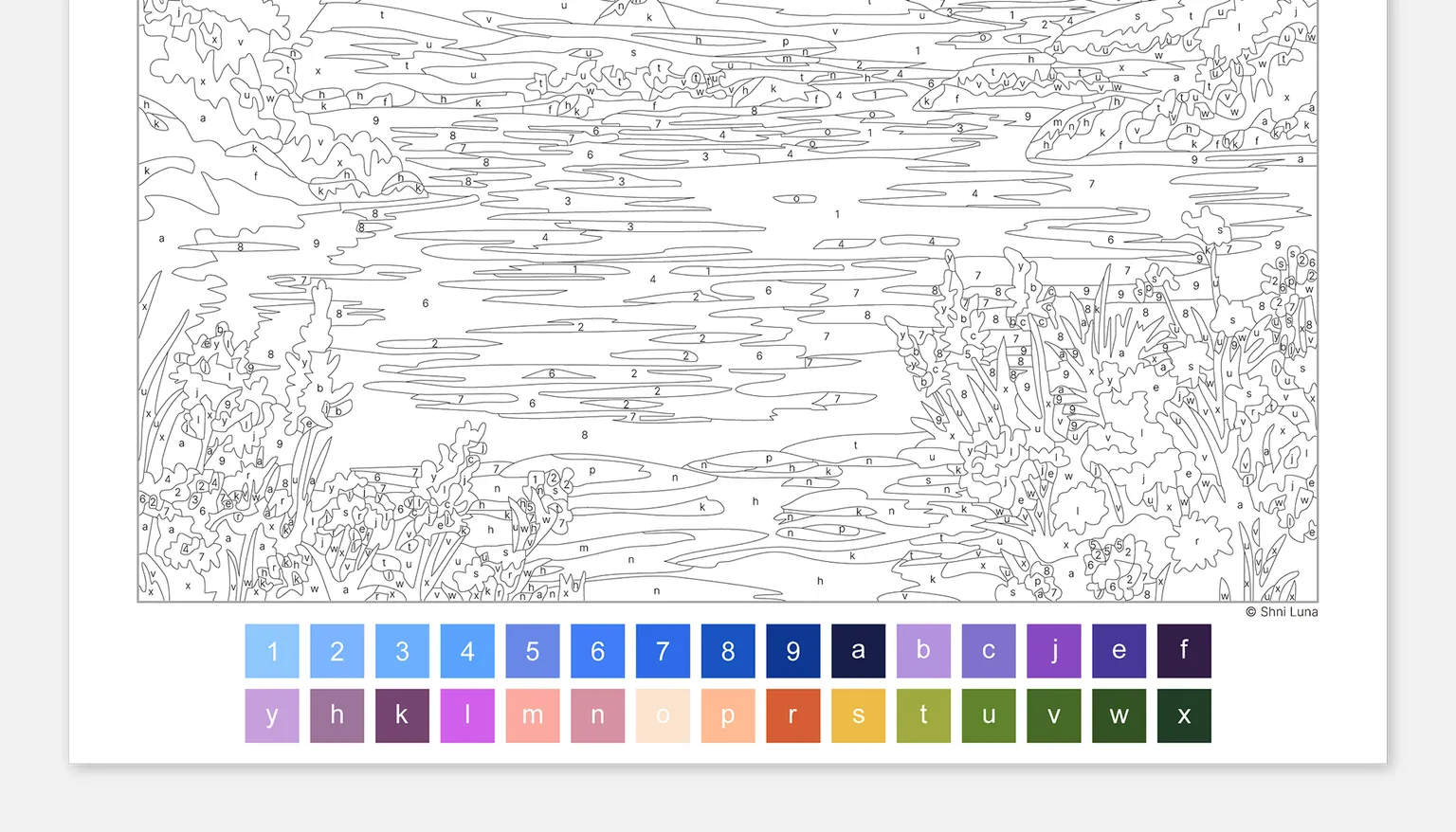
Numbers + Color Palette Page
This is a page that includes both the numbered artwork and the color palette at the bottom.
This option is beginner-friendly because you don’t need to open the palette separately. You can see the number on the artwork and immediately see which color matches it.
Your download also includes other files:
- Numbered Page
- Contour Page
- Navigation Map
- Color Palette
You can read more about them in the How to Start Coloring guide.
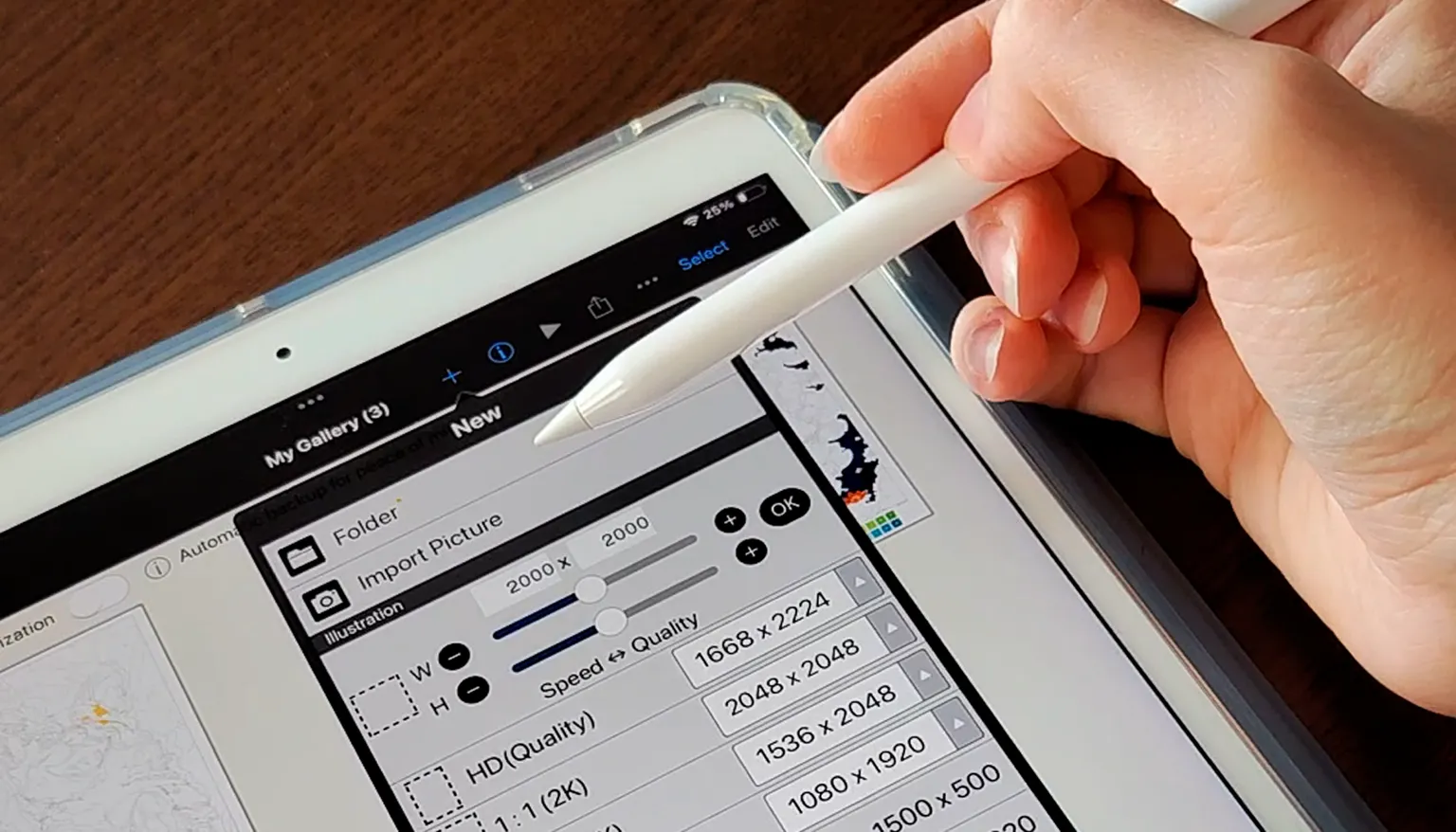
3. Import the file into your app
Open your drawing app and add the PNG coloring page file.
In different apps, this option may have different names:
- Import
- Add photo
- Insert image
- Open from files
- Import image
The most important thing is to add the coloring page as an image inside your project.
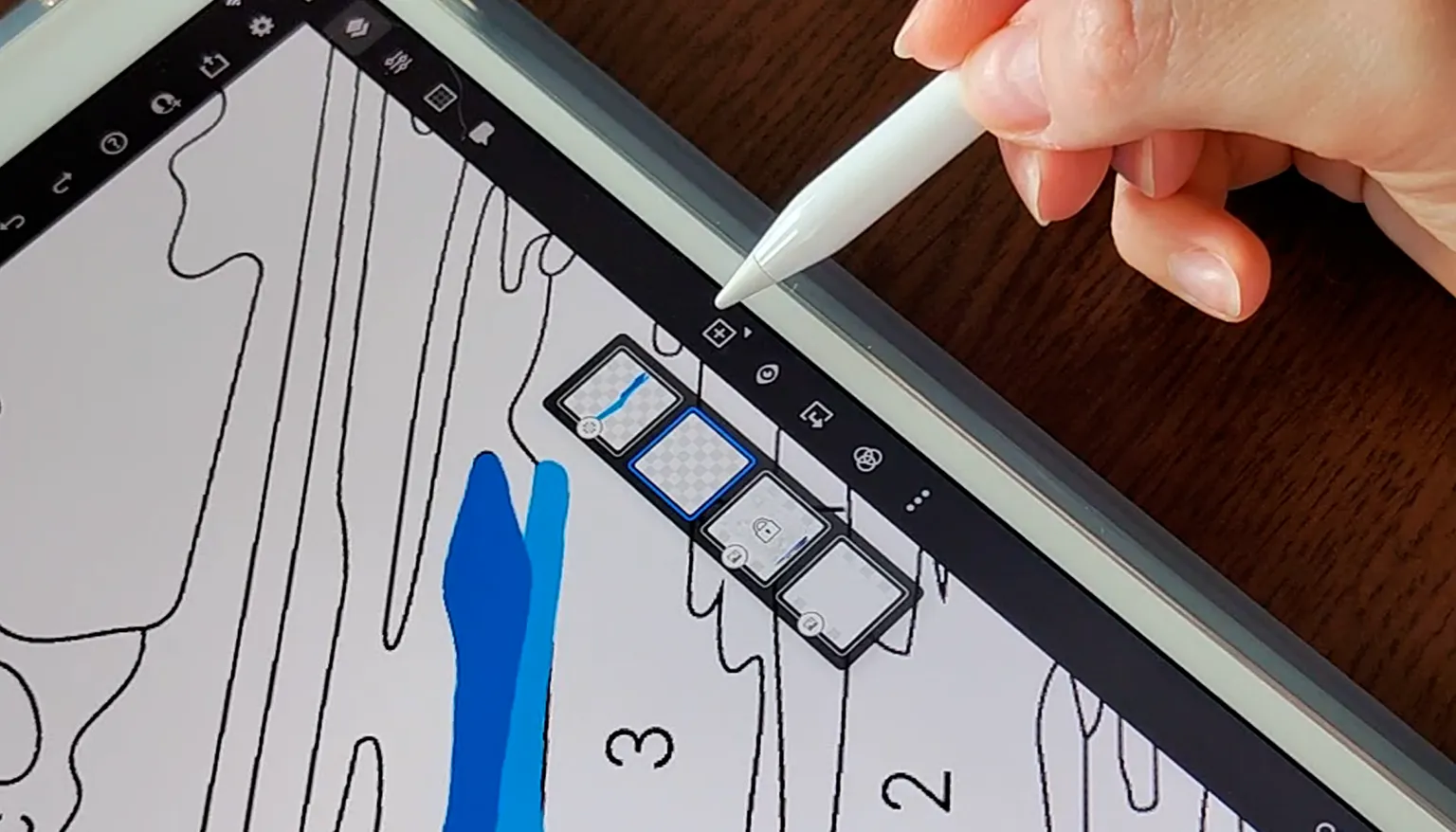
4. Prepare your layers
If your app supports layers, they can be very helpful for digital coloring.
I usually recommend:
- keeping the numbered coloring page on the bottom
- creating a new color layer above it
- coloring touching areas on separate layers when they are close to areas you have already colored
This makes it easier to fix mistakes and work with separate colors.
In some apps, it can be helpful to set the coloring page layer to Multiply, so the lines and numbers stay visible above your colors. In this case, place the coloring page on the very top layer and add your colors on the layers underneath.
If you are just starting and don’t want to work with layers yet, you can color directly on top of the page. But using layers gives you more freedom and makes it easier to correct mistakes.
5. Pick a color from the palette
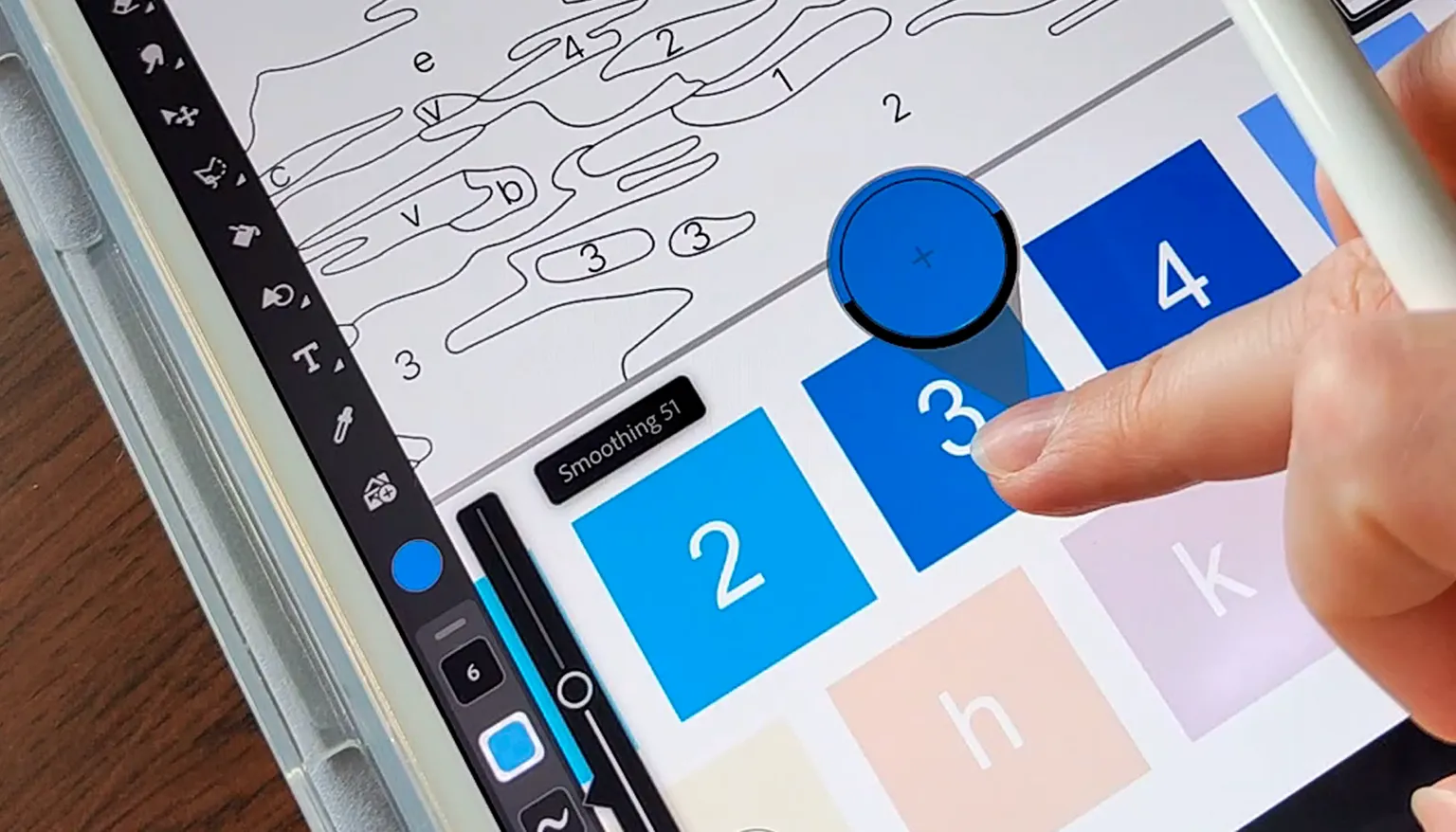
At the bottom of the Numbers + Color Palette Page, you will find the color palette with numbers or letters.
Find a number on the artwork, check which color matches it in the palette, and select that color in your app.
Many drawing apps have an eyedropper tool that lets you pick a color directly from the palette. The tool may be called:
- Eyedropper
- Color Picker
- Pick color
6. Start coloring
Now you can fill the areas with the matching number.
There are two main ways to color digitally:
Color with a brush
This is the simplest and safest method. You choose a brush and color the areas by hand. A simple solid brush without texture works best.
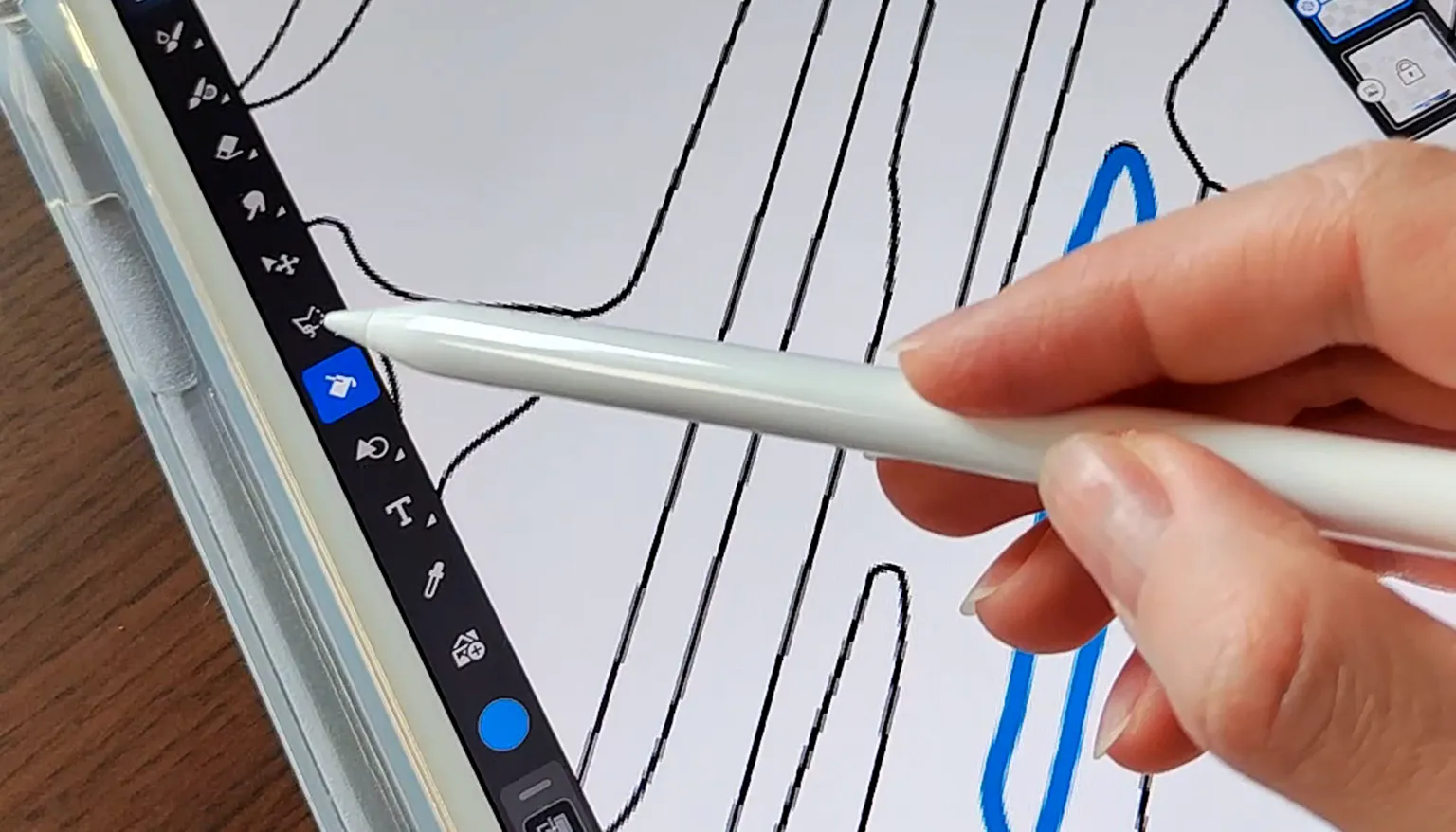
Use the fill tool
In ibisPaint X, you can remove the white background, tap an area, and fill it with color automatically. This is faster, but the fill tool may leave the numbers uncolored, so you may need to color them manually afterward. The easiest method is to outline the area with a brush first, then fill the inside with the fill tool.
If the fill tool colors too large an area or leaves a white outline, adjust the fill settings.
7. Zoom in on small details
One of the best things about digital coloring is that you can zoom in. If an area is very small:
- zoom in
- make your brush smaller
- color more slowly
- take your time
This is especially helpful for detailed coloring pages.
Helpful tips for beginners
- Start with a simpler page with around 200–300 objects.
- Use a solid brush with no transparency.
- Keep opacity at 100%.
- Zoom in on small areas.
- Don’t worry if your first page is not perfect.
- Color at your own pace.
Digital coloring may feel a little unfamiliar at first, but after a few minutes you will understand the rhythm: pick a color, find the number, fill the area, repeat.
Watch the video tutorials
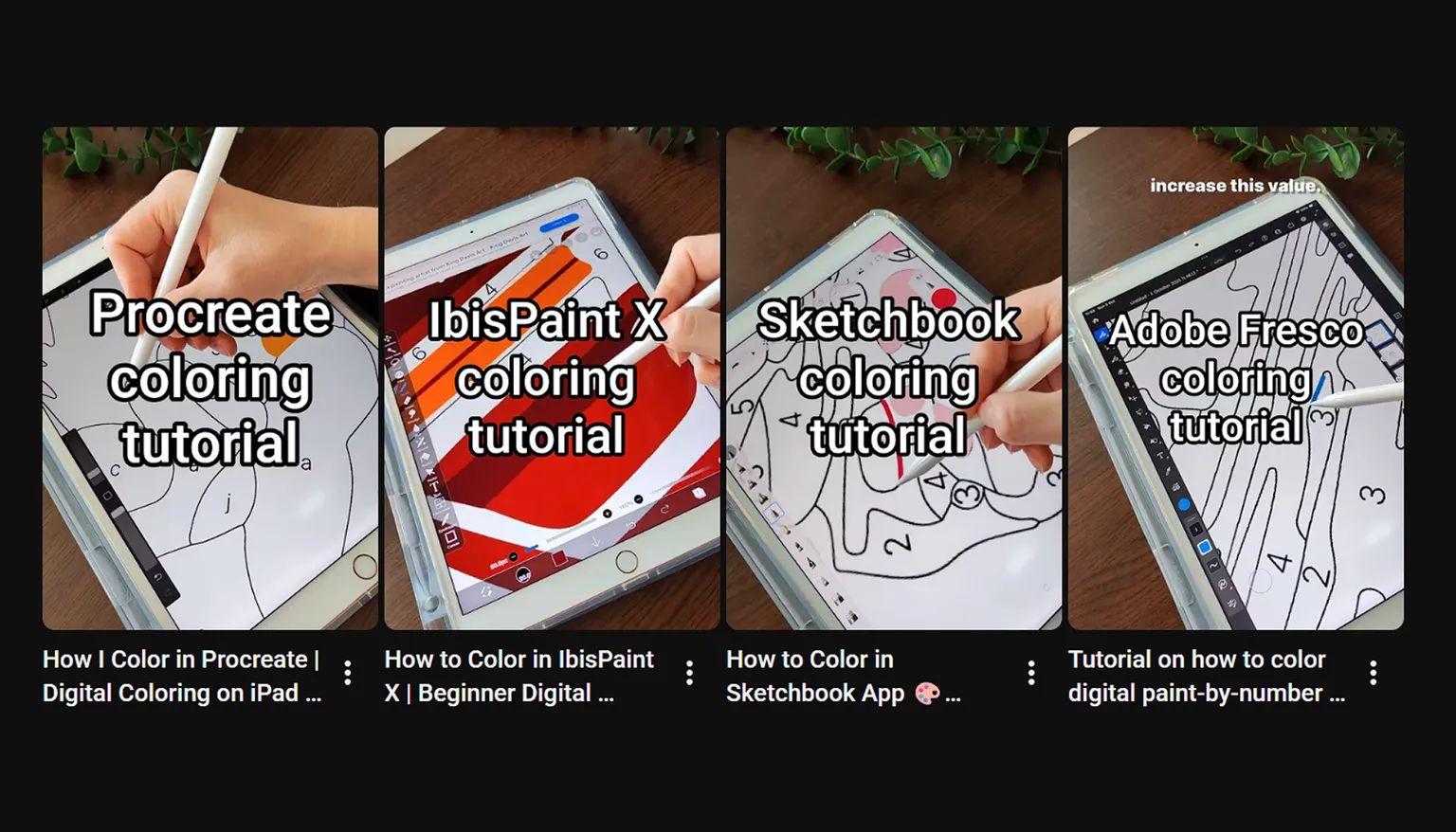
If it’s easier for you to learn by watching, I created step-by-step tutorials for different apps:
- How to Color in Procreate
- How to Color in ibisPaint X
- How to Color in Sketchbook
- How to Color in Adobe Fresco
My quick recommendation
- If you have an iPad, try Adobe Fresco or Procreate.
- If you have an Android device, try ibisPaint X or Sketchbook.
- If you want to color on your phone with your finger, start with ibisPaint X.
But the best app is the one that feels comfortable for you. Try one free option, open a simple coloring page, and see if you enjoy the process.
Ready to start?
Choose a coloring page, open it in your app, zoom in on the first area, and start with one color.
Helpful links: